Best Duplex Laser Printer: How to Choose One
The best duplex laser printer for home has automatic two-sided printing, dual-band Wi-Fi and a toner yield that fits how much you print. Check those three things before you compare speed or price.
On this page (21 sections)
- What duplex means on a laser printer
- Automatic and manual duplex compared
- Why automatic duplex matters more than most specs
- What duplex saves on a 40-page report
- Set two-sided printing as the default
- Wi-Fi and wired options on a duplex laser printer
- Toner yield and cost per page
- Speed and paper handling for duplex printing
- Which duplex laser printer fits your home
- Paper types and duplex printing
- Two-sided printing from phones and laptops
- Warranty and support for duplex models
- Common mistakes when buying for duplex
- Checklist before you buy a duplex laser printer
- Two-sided printing for school papers and forms
- Duplex on a shared home network
- Speed on long duplex jobs
- Toner use with two-sided printing
- Who should skip automatic duplex
- Checking the duplex setting after setup
- How to choose a duplex laser printer for your home
The best duplex laser printer for home has automatic two-sided printing, dual-band Wi-Fi and a toner yield that fits how much you print. Check those three things before you compare speed or price.
Duplex is the feature most home buyers use every week, so it deserves a close look. This guide explains what duplex means, how to compare the setups and which other specs matter next.
What duplex means on a laser printer
Duplex printing puts text on both sides of the same sheet. The printer does this in one of two ways, and the difference matters for how often you touch the paper.
Automatic duplex flips the sheet inside the printer and prints the second side without help. Manual duplex needs you to turn the stack over and feed it back in, which slows long jobs.
Check the printer's duplex setting before you buy. Some models list "automatic" and others list "manual", and that one word changes the daily work.
Automatic and manual duplex compared
Most of the Brother and HP models in our mono guide print both sides on their own. The Brother HL-L2460DW, DCP-L2640DW and HL-L2480DW all print two-sided pages automatically, as does the HP LaserJet M207dw.
The Brother HL-L2405W is the exception. It offers manual two-sided printing, so a long report means turning the stack over and feeding it again.
Why automatic duplex matters more than most specs
Automatic duplex saves paper, which lowers the cost of a long job. It also saves time, since you don't stop the printer to flip each sheet.
Duplex matters most for reports, contracts, school papers and forms that print many pages. For single pages and receipts, one-sided printing is fine.
If you print one side most days, manual duplex may be enough. Be honest about your job size before you pay for automatic duplex you rarely use.
What duplex saves on a 40-page report
Take a 40-page report as an example. One-sided printing uses 40 sheets, while two-sided printing uses 20 sheets for the same text.
Half the sheets means half the trips to the paper tray and half the paper to store. It also means fewer sheets to file, which is easy to overlook until you have a stack of them.
On a manual model, the same report needs you to turn the stack over partway through and feed it back in. That's workable for one report, but it adds up across a month of long jobs.
Set two-sided printing as the default
Most computer print dialogs let you set two-sided printing as the default. Once it's set, every job prints both sides unless you change it.
Check that default on each computer that prints to the printer. A laptop with a different setting can still print one side by mistake.
Use the printer's own menu to confirm the duplex setting too. That keeps the setting the same whether you print from a phone, a laptop or a shared desktop.
Wi-Fi and wired options on a duplex laser printer
Dual-band Wi-Fi uses both the 2.4 GHz and 5 GHz bands. The 5 GHz band is usually faster over short distances, and the 2.4 GHz band reaches farther through walls.
The Brother HL-L2460DW and DCP-L2640DW add an Ethernet port, and the HP M207dw includes Ethernet too. A wired port helps when the Wi-Fi signal is weak in the room where the printer sits.
Check the phone app before you buy. Brother's Mobile Connect app prints from phones and tracks toner, and HP's and Canon's apps cover their own models.
For the wireless picks in one list, see our wireless laser printer guide.
Toner yield and cost per page
Toner yield is the number of pages a cartridge is rated to print. Compare yields across the models you consider, because the cartridge is the cost you pay again.
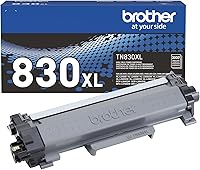
Brother rates its standard TN830 cartridge at up to 1,200 pages and its high-yield TN830XL at up to 3,000 pages. The larger cartridge usually costs more up front but often lowers the cost per page.
Canon rates its Genuine Toner 125 for the LBP6030w at 1,600 pages. The LBP122dw uses Canon Genuine Toner 071, with a high-capacity 071H option for more pages.
To work out the cost per page, divide the cartridge price by its page yield. Our laser printer cost per page guide walks through the math with real examples.
Speed and paper handling for duplex printing
Page speed decides how long a long job takes. Brother rates the HL-L2460DW at 36 pages per minute in black and white, and the Canon LBP122dw at up to 30 pages per minute.
Speed matters less for home printing than most buyers expect. A few pages a day finish quickly on any model here.
The paper tray decides how often you refill. The 250-sheet trays on the Brother HL-L2460DW and HL-L2405W hold more than the 150 sheets on the Canon LBP6030w and HP M207dw.
Which duplex laser printer fits your home
A duplex laser printer for a home office
Choose automatic duplex and a 250-sheet tray if you print reports daily. The Brother HL-L2460DW covers that work in a print-only body.
A duplex laser printer on a small budget
The HP LaserJet M207dw and Canon LBP122dw both print two-sided pages automatically at a lower price tier. They suit a small home office that prints a few reports a week.
A duplex laser printer for light printing
If you print one side most days, the Brother HL-L2405W is the budget choice. Its manual two-sided printing is enough for occasional double-sided jobs.
For the mono picks that suit different homes, see our black and white laser printer guide. It compares the same models on speed and features.
Paper types and duplex printing
Duplex works best on standard office paper in the weight the printer lists. Very heavy stock or card may not feed through a duplex path, so check the printer's paper guide before you print on it.
Thin paper can jam on a duplex path too, so keep to the range the maker lists. A jam on the second side can waste the whole sheet.
Two-sided printing from phones and laptops
Most phone apps and computer print dialogs let you pick two-sided printing for each job. Set it once in the default settings, so every job follows the same setup.
Check the duplex setting again after you update the driver or the app. A software update can switch the default back to one side without you noticing.
Warranty and support for duplex models
Brother lists a 1-year limited warranty on the HL-L2460DW and HL-L2405W, so check the term for the model you buy. Canon lists a 1-year limited warranty on the LBP6030w, which has no duplex.
Keep the receipt and the model number with the warranty card. Those three items make a claim faster if the duplex unit fails.
Common mistakes when buying for duplex
The most common mistake is paying for automatic duplex and then printing one side for every job. Set the default first, so the feature actually saves paper.
Another mistake is ignoring the tray size. A small tray means refills in the middle of a long job, which slows the work even on a fast duplex printer.
A third mistake is buying manual duplex for a home that prints long documents. The hand flip adds up quickly across a month of reports.
Checklist before you buy a duplex laser printer
Start with the duplex type. Confirm whether the printer prints both sides automatically or needs a hand flip.
Next check the connection. Wi-Fi with a dual-band radio is the best choice for most homes, and an Ethernet port is a useful extra.
Then compare the toner yield and the cost per cartridge. The cartridge sets your running cost, so compare the pages each one prints.
Two-sided printing for school papers and forms
School papers and forms often use one side for text and the other for a signature or a section. Automatic duplex keeps those pages in order without a second pass.
Test a page before you print a full batch of forms that need a specific layout. A quick test shows whether the second side lines up the way you want.
Duplex on a shared home network
Several people often print to one duplex printer, so the default matters more than it does for one user. Set two-sided printing on the shared printer itself, so every computer and phone gets the same result.
Check that the default survives restarts and updates. A reset or a new computer can bring back one-sided printing, and a shared household rarely notices until a long job prints the wrong way.
Speed on long duplex jobs
Duplex can slow a job slightly on some printers, because the second side takes extra time to print. For a few pages a day, the difference is hard to notice.
Long jobs show the difference more clearly. Check the rated pages per minute on each model, then estimate how long your largest job takes on the printer you pick.
Toner use with two-sided printing
Two-sided printing doesn't change the toner used per printed side. It changes how many sheets you use, so the savings show up mostly in paper and handling time.
Who should skip automatic duplex
A home that prints one page a week may not need automatic duplex at all. The HL-L2405W's manual two-sided printing covers occasional double-sided jobs.
Checking the duplex setting after setup
Print a two-page test document after setup and check both sides. That step confirms the duplex path works before you print important work.
Repeat the check after any firmware update. A new setting can change the default without a clear warning.
If several people print to the printer, tell them the setting too. A short note near the printer is enough.
How to choose a duplex laser printer for your home
Look for automatic duplex first, then check the Wi-Fi and the toner yield. Speed and tray size come after those three checks.
If you print long documents, the automatic option saves paper and time. If you print one side most days, a manual model still does the job.
For the wider case for laser printers at home, read our best laser printer for home use guide. For Brother toner codes and yields, see our Brother laser printer toner guide.
Frequently asked questions
What does duplex mean on a laser printer?
Duplex means the printer prints on both sides of a sheet. Automatic duplex flips the page for you, while manual duplex needs you to turn the paper over and feed it back in.
Is automatic duplex worth paying more for?
For reports, forms and long documents, yes, because it halves the paper you use on a long job. If you print one side most days, manual duplex is enough.
Do duplex laser printers use more toner?
The toner used depends on the pages printed, not on the duplex setting. Two-sided printing puts more pages on fewer sheets, so the toner per page stays the same while paper use drops.