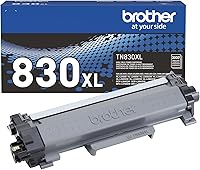
Brother Laser Printer No Toner Error: What to Check
A no toner error on a Brother laser printer usually means the cartridge isn't seated, is the wrong model or is empty. Check those three things first, then print a test page before you buy a new cartridge.
On this page (10 sections)
- Check that the toner cartridge is seated
- Check that the cartridge matches your model
- Check whether the cartridge is empty
- Look at the message on the screen
- Restart the printer and check for firmware
- Test the printer before you buy another cartridge
- What a toner cartridge costs you over time
- Keep a spare cartridge on hand
- When to contact Brother support
- What to do first when a Brother laser printer says no toner
A no toner error on a Brother laser printer usually means the cartridge isn't seated, is the wrong model or is empty. Check those three things first, then print a test page before you buy a new cartridge.
The error appears when the printer can't detect a toner cartridge, or when it reads the cartridge as empty. Most fixes take a few minutes and don't cost anything.
Work through the checks in order, because the first two solve most cases.
Check that the toner cartridge is seated
Brother laser printer no toner error with a new cartridge
Turn the printer off and let it cool for a few minutes first, since the fuser inside gets hot.
Open the front cover and look at how the toner cartridge sits. On Brother models the toner cartridge fits inside the drum unit, so the drum has to be in place before the toner can lock.
Take the drum unit out, then check that the toner cartridge slides all the way into it and locks. Push the drum unit back in until it stops, then close the cover.
If the printer still says no toner, try reseating the cartridge once more. Dust on the metal contacts can sometimes stop the printer from detecting the cartridge, so wipe the contacts gently with a dry, lint-free cloth.
Your model's manual shows the exact steps for removing the drum unit.
Check that the cartridge matches your model
Brother's TN830 and TN830XL cartridges fit several newer home models, including the HL-L2460DW, DCP-L2640DW and MFC-L2820DW. The HL-L2405W and HL-L2480DW also use them.
Check the model number on the cartridge box before you install it.
A cartridge that doesn't match the printer can trigger the same message. Brother says its genuine toner is the only brand it recommends for these printers.
If you use a non-Brother cartridge and see the error, test with a Brother cartridge before you blame the printer.
Check whether the cartridge is empty
A cartridge that's out of toner will show the same message. Brother rates the standard TN830 at up to 1,200 pages and the high-yield TN830XL at up to 3,000 pages.
If the cartridge has been in use for a long time, it may be empty even when it looks full. A fresh cartridge tells you quickly whether the old one is the problem.
Look at the message on the screen
Read the exact message on the printer's screen before you change anything. A toner message points to the cartridge, while a drum message points to the drum unit.
If the printer shows a drum warning, the fix is different. The DR-830 drum unit is rated by Brother at up to 15,000 pages, and it works with the TN830 and TN830XL cartridges.
For the steps to swap a drum, see our drum replacement guide.
Restart the printer and check for firmware
Turn the printer off, wait a few minutes and turn it back on. A restart clears many detection problems without any other step.
Check Brother's support site for firmware updates for your model. A firmware update can fix a detection problem, so it's worth a look if the error keeps returning.
Test the printer before you buy another cartridge
Print a test page after each change, so you know which step worked. If the page prints, the cartridge is good and the problem is solved.
If the error stays on after every check, the cartridge may be empty or faulty. Brother's support site for your region is the place to confirm the next step for your model.
What a toner cartridge costs you over time
Toner is the cost you pay again, so a cartridge that runs out early adds up. The page yield on the box tells you how many pages to expect.
To keep the printer running, plan the next cartridge before the first one empties. Our Brother laser printer toner guide explains which cartridge suits which page volume.
For the cost of printing across the whole printer, see our laser printer cost per page guide.
Keep a spare cartridge on hand
A spare cartridge prevents a long wait when the printer runs out in the middle of a job. Keep one spare for the model you own, and store it away from direct sun and heat.
A two-pack keeps a spare ready and is a practical buy for a home that prints every week. Check the model match on the box before you buy the spare, since the cartridge codes differ between models.
When to contact Brother support
If the message stays on after every check, the printer or the cartridge may need a closer look. Brother's support site covers online help, phone and live chat for your region.
Have the model number, the serial number and the exact error message ready before you call or chat. That information shortens the contact and helps the agent find the right fix.
What to do first when a Brother laser printer says no toner
Start by reseating the cartridge and checking the model number. Those two steps often clear a no toner error on a Brother printer.
Then restart the printer, test with a fresh cartridge and check the drum only if the message points to it. If the printer keeps failing after every check, our black and white laser printer guide compares replacement models.
Frequently asked questions
Why does my Brother laser printer say no toner when the cartridge is new?
A common cause is a cartridge that isn't fully seated in the drum unit or the printer. Take it out, check that it sits all the way in and clicks into place, then close the cover and print a test page.
Will a no toner message clear by itself?
Sometimes it clears after the cartridge is reseated or the printer is restarted. If it stays on after every check, the cartridge may be empty, the wrong model or not detected, so replace it with a cartridge that matches your model.
Should I replace the drum when the printer says no toner?
Not usually, since a no toner message points to the cartridge while a drum message points to the drum unit. Read the exact message on the screen before you change anything.